
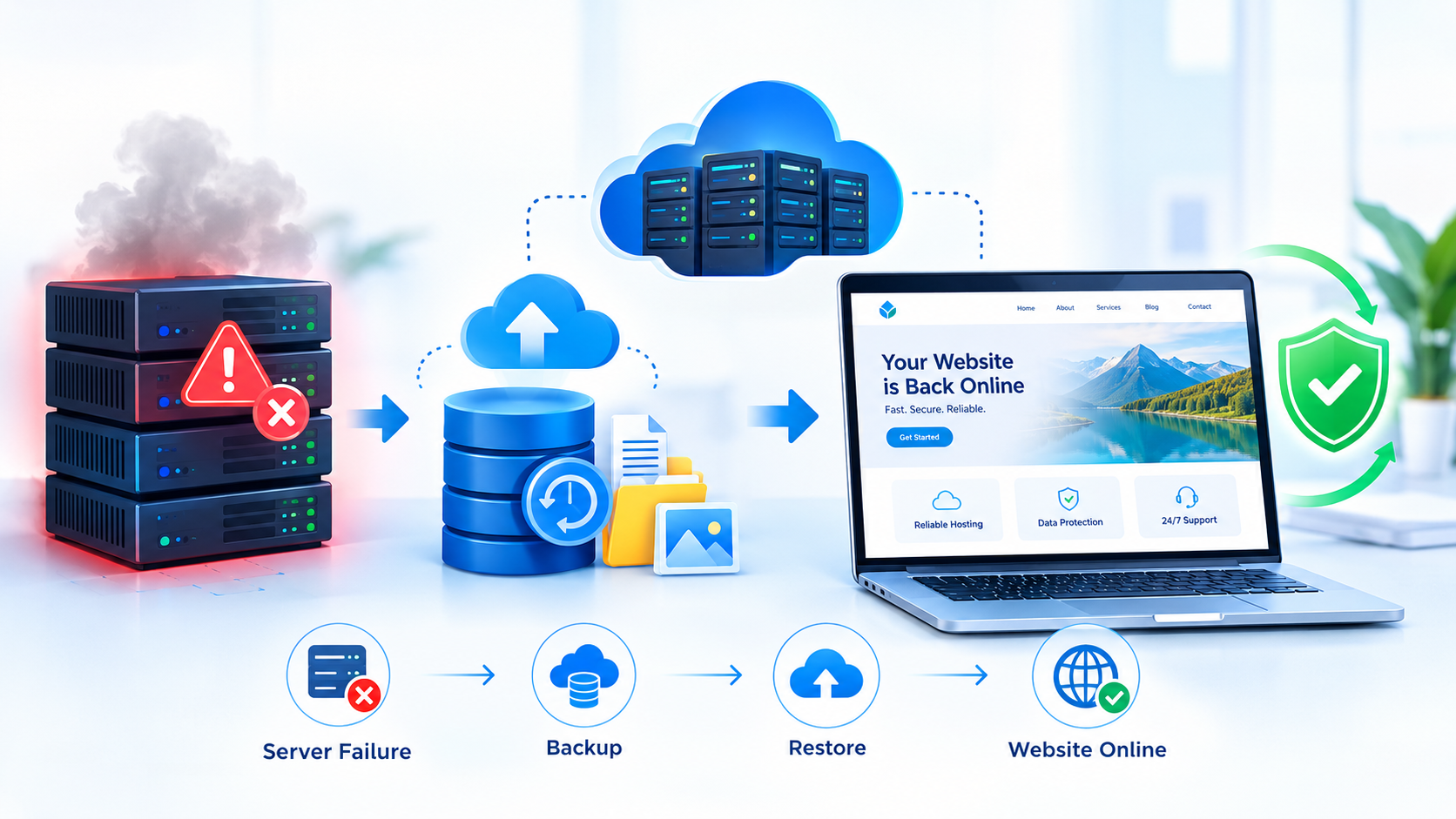
Website downtime can happen unexpectedly. A hosting server failure, hardware problem, software error, cyberattack, database issue, or configuration mistake can make your website unavailable. For businesses, even a few hours of downtime can result in lost visitors, missed leads, reduced sales, and damage to customer trust.
The good news is that a website can usually be recovered efficiently when you have a proper backup and recovery plan.
In this guide, we’ll explain how to recover a website after a hosting server failure, what to check first, how to restore your website from a backup, and how to reduce the risk of similar problems in the future.
Table of Contents
What Is a Hosting Server Failure?
Common Causes of Hosting Server Failure
What Happens When a Hosting Server Fails?
Step 1: Identify the Cause of the Failure
Step 2: Contact Your Hosting Provider
Step 3: Check Your Website Backups
Step 4: Prepare a New Hosting Environment
Step 5: Restore Website Files
Step 6: Restore the Database
Step 7: Check DNS and Domain Settings
Step 8: Test Your Website
How Server Failure Can Affect SEO
How to Prevent Future Website Downtime
Why Cloud Hosting Can Help
Frequently Asked Questions
Conclusion
What Is a Hosting Server Failure?
A hosting server failure occurs when the server responsible for storing and delivering your website's files becomes unavailable or stops working correctly.
Depending on the severity of the problem, visitors may see:
Website unavailable errors
500 Internal Server Error
502 Bad Gateway
503 Service Unavailable
Database connection errors
Extremely slow loading
Blank or broken pages
Sometimes the issue is temporary and can be resolved by the hosting provider. In more serious situations, the website may need to be restored on another server.
Common Causes of Hosting Server Failure
Understanding the possible causes can help you respond quickly when a problem occurs.
1. Hardware Failure
Servers contain physical components such as storage drives, RAM, processors, and power systems. Hardware failure can make websites temporarily or permanently inaccessible.
2. Software or Configuration Errors
Incorrect server configurations, incompatible software updates, or faulty applications can cause website failures.
3. Database Problems
Websites that depend on databases, such as WordPress websites and e-commerce platforms, may stop working if the database becomes corrupted or inaccessible.
4. Cybersecurity Incidents
Malware, hacking attempts, ransomware, and other security incidents can affect website files and server availability.
5. Resource Overload
A sudden increase in traffic, poorly optimized applications, or excessive resource usage can cause a server to become overloaded.
6. Hosting Infrastructure Problems
Network failures, power issues, data-center problems, or other infrastructure-related incidents can also cause downtime.
What Happens When a Hosting Server Fails?
When a server fails, your website may become inaccessible to visitors. Depending on the type and duration of the failure, several areas can be affected:
Website availability
Customer inquiries
Online sales
Database access
Email services
Website performance
Search engine crawling
This is why having a website backup and disaster recovery strategy is important for every business.
Step 1: Identify the Cause of the Failure
Before restoring the website, determine whether the problem is actually related to the hosting server.
Check:
Server status
Hosting control panel
Error messages
Website logs
Database status
DNS settings
Recent server or plugin changes
Resource usage
You can also check whether other websites hosted on the same server are experiencing problems.
If the issue is related to the hosting infrastructure, contact your hosting provider immediately.
Step 2: Contact Your Hosting Provider
Your hosting provider may already be working on the issue.
Ask the hosting support team:
What caused the server failure?
Is the server recoverable?
Is there any data loss?
Is the database intact?
Are server backups available?
How long is recovery expected to take?
Can the website be migrated to another server?
Getting accurate information early can help you decide whether to wait for recovery or move the website to a new environment.
Step 3: Check Your Website Backups
Your backup is one of the most important parts of website recovery.
Check whether you have recent copies of:
Website files
WordPress files
Database
Images
Plugins and themes
Configuration files
Email data, if applicable
SSL certificates or related configuration
Ideally, backups should not exist only on the same server as your website.
For better protection, maintain backups in a separate storage location.
A simple backup strategy
You can follow the 3-2-1 backup approach:
3 copies of your data → 2 different storage types → 1 copy stored off-site
This reduces the risk of losing both your website and its backup during the same server incident.
Step 4: Prepare a New Hosting Environment
If the original server cannot be recovered quickly, consider moving the website to a new hosting environment.
The new environment should have:
Suitable server resources
Compatible PHP/software versions
Database support
SSL support
Reliable storage
Security configuration
Backup capability
Proper DNS configuration
Before migration, make sure the new server meets your website's technical requirements.
Step 5: Restore Website Files
Once the new server is ready, upload the backed-up website files.
For a WordPress website, this generally includes:
WordPress core files
wp-contentThemes
Plugins
Media uploads
Configuration files
After uploading the files, verify that file permissions and server configurations are correct.
Avoid making unnecessary changes during recovery because they can introduce additional problems.
Step 6: Restore the Database
If your website uses a database, restoring the database is just as important as restoring the website files.
For WordPress websites, the database contains important information such as:
Pages
Posts
Users
Website settings
Comments
Plugin data
Theme settings
Other website content
After importing the database, verify that the website configuration points to the correct database server, database name, username, and password.
Step 7: Check DNS and Domain Settings
After moving the website to a new server, your domain may still point to the old server.
Update the necessary DNS records so that the domain points to the new hosting environment.
Common records include:
A record
CNAME record
MX record
TXT records
Be careful when changing DNS records because incorrect changes can affect both your website and email services.
DNS changes may also take time to propagate.
Step 8: Install and Verify SSL
After migration, make sure your website is accessible using HTTPS.
Check:
https://yourdomain.com
Verify that:
The SSL certificate is valid
No certificate warnings appear
HTTP redirects correctly to HTTPS
Images and scripts load over HTTPS
Important pages work correctly
An SSL issue after migration can create additional problems for visitors and search engines.
Step 9: Test Your Website
Don't immediately assume that the recovery is complete.
Perform a complete website check.
Test these areas:
Website functionality
Homepage
About page
Contact page
Services
Blog
Forms
Search functionality
E-commerce functionality
Product pages
Shopping cart
Checkout
Payment gateway
Order confirmation
Technical functionality
Database connection
SSL
DNS
Email
Cron jobs
APIs
Third-party integrations
Also test the website on both desktop and mobile devices.
How Server Failure Can Affect SEO
Website downtime can also affect search engine optimization (SEO).
Search engines need to access your website to crawl and index its pages. If a website remains unavailable for an extended period, it can create crawling and indexing problems.
Potential SEO-related issues include:
Search engine crawling failures
Temporary ranking fluctuations
Pages becoming unavailable
Broken internal links
Missing images
Incorrect redirects
Indexing problems
However, a short period of downtime does not automatically mean your website will permanently lose its rankings.
The important thing is to restore the website correctly and quickly.
After recovery, check:
Google Search Console
Sitemap
Robots.txt
Important URLs
HTTP status codes
Canonical tags
Internal links
Redirects
What If You Don't Have a Website Backup?
This is one of the most difficult situations.
If you don't have a backup, contact your hosting provider immediately and ask whether they have:
Automatic backups
Snapshot backups
Server-level backups
Database backups
Disaster recovery copies
You may also be able to recover some website content from other sources, depending on your website setup.
However, recovery without a reliable backup can be incomplete and time-consuming.
This is why regular automated backups should be part of your website maintenance strategy.
How to Prevent Future Website Downtime
Recovering a website is important, but preventing the same problem from happening again is even better.
1. Take Regular Backups
Schedule automatic backups based on how frequently your website changes.
For an active website, frequent backups can reduce potential data loss.
2. Store Backups Separately
Don't keep your only backup on the same server as your website.
Use separate storage or cloud-based backup storage.
3. Monitor Website Uptime
Website monitoring tools can notify you when your website becomes unavailable.
Early alerts allow you to respond before a small issue becomes a major problem.
4. Keep Software Updated
Regularly update:
CMS
Plugins
Themes
Server software
Security tools
Before major updates, create a backup.
5. Use Security Protection
Implement appropriate security measures such as:
Strong passwords
Multi-factor authentication
Firewall protection
Malware monitoring
Regular security scans
6. Have a Disaster Recovery Plan
Create a documented recovery process that explains:
Who should be contacted
Where backups are stored
How to restore the website
How to change DNS
How to verify the recovery
How to communicate downtime to customers
A documented process can significantly reduce confusion during an emergency.
Why Cloud Hosting Can Help With Website Recovery
Cloud hosting can provide useful infrastructure options for businesses that need flexibility, scalability, and reliable website operations.
Depending on the hosting architecture and service provider, cloud environments may offer features such as:
Scalable resources
Backup options
Redundancy
Flexible server configurations
Monitoring
Disaster recovery capabilities
However, cloud hosting does not automatically mean your website cannot fail.
A reliable recovery strategy still requires proper backups, security, monitoring, and a well-planned disaster recovery process.
Website Recovery Checklist
Before considering your website fully recovered, use this checklist:
☑ Server issue identified
☑ Hosting provider contacted
☑ Latest backup located
☑ Website files restored
☑ Database restored
☑ DNS records checked
☑ SSL certificate verified
☑ Website pages tested
☑ Forms tested
☑ Email tested
☑ Mobile version checked
☑ Broken links checked
☑ Google Search Console checked
☑ Sitemap verified
☑ Website monitoring activated
☑ New backup created
Frequently Asked Questions
How long does it take to recover a website after server failure?
Recovery time depends on the size of the website, the cause of the failure, backup availability, and the hosting environment. A website with a recent, tested backup can generally be restored much faster than one without a backup.
Can a website be recovered without a backup?
Sometimes, depending on whether the hosting provider has server-level backups or snapshots. However, there is no guarantee that all website data can be recovered without a reliable backup.
Will server downtime affect Google rankings?
Extended or repeated downtime can create crawling and indexing issues. The impact depends on factors such as the duration of the outage and how search engines encounter the website during that period.
How often should I back up my website?
The ideal frequency depends on how often your website changes. Websites with frequent content, transactions, or customer activity may require more frequent backups than simple static websites.
Is cloud hosting completely safe from server failure?
No hosting environment can guarantee zero failures. Cloud infrastructure can improve flexibility and provide additional redundancy or recovery options, but businesses should still maintain independent backups and a disaster recovery plan.
What is the most important step after a server failure?
The first priority is to identify the cause and determine whether your data is safe. Then locate the latest reliable backup and begin recovery using a controlled process.
Conclusion
A hosting server failure can be stressful, but a well-prepared website can recover without major disruption.
The key is to have reliable backups, suitable hosting infrastructure, regular monitoring, proper security, and a clear disaster recovery plan.
If your website experiences a server failure, don't immediately start making random configuration changes. First identify the problem, secure your available data, verify your backups, and follow a structured recovery process.
For businesses that depend on their websites for leads, sales, bookings, or customer communication, investing in reliable hosting and backup solutions can help reduce the risks associated with unexpected server failures.
Looking for reliable cloud hosting and website infrastructure solutions? Explore Cloud India and choose a hosting environment designed to support your business's online presence.
Cloud India — Reliable Hosting for Your Growing Business.









































































































































































Leave A Comment